
Common Patterns & Tips
The same handful of controls show up all over CPR. Learn them once and every screen feels familiar.
Tables
- Sorting — where a column header is clickable, clicking it sorts by that column; clicking again reverses the order.
- Row click — on most lists, clicking a row opens the detail view (a patient record, a report breakdown, etc.).
- Row actions — small icons at the right of a row: a pencil to edit, a trash to delete, an eye to view/preview.
- Empty state — when there's nothing to show, the table displays a short message and an icon instead of rows.
- On small screens, tables scroll sideways and some less‑important columns are hidden.
Pagination
Long lists are split into pages (15 rows by default). The pagination strip at the bottom has Previous / Next buttons and numbered page buttons for direct jumps. On lists with many pages the strip collapses with ellipses (… 1 … 5 6 7 … 99) so you always see the first, last, and pages near the current one. To the right, a Go to page input lets you type a page number and press Enter to jump straight there. The strip also tells you which rows you're viewing out of the total.
Search and filters
Search boxes filter as you type — there's no "go" button. The placeholder text tells you what's searched (name, ID, etc.).
Filter dropdowns (status, category, payer, …) start on an "All" option; pick a value to narrow the list. You can combine filters.
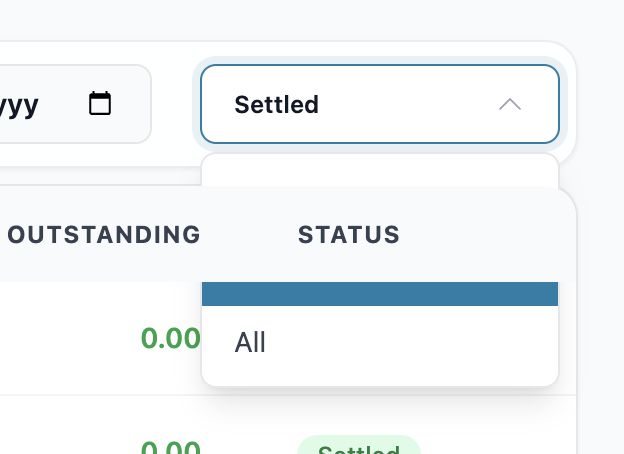
Date filters appear as From / To (a date range) or a single date, depending on the screen.
Search‑select fields (in forms — for patients, doctors, items, suppliers, etc.) work the same way: start typing and pick from the suggestions.
Forms and dialogs
- Forms open as a panel over the page with a teal header. Close with the X in the corner or the Cancel button.
- Required fields are marked with a red asterisk (*). If something's missing or invalid (for example a malformed email), a message appears under the field and the form won't save until it's fixed.
- The main button (Save, Create, Update…) sits in the footer and shows a "…ing" label while it works — wait for it to finish rather than clicking again.
Confirming deletes
Deleting anything pops up a confirmation dialog naming what you're about to remove. Click the confirm button to proceed or Cancel to back out. You can't dismiss the dialog while the delete is running. Once done, a small toast message appears (e.g. "Doctor deleted successfully").
Signatures
Where a signature is needed (most often when adding a doctor), you get two options:
- Draw — sign with your mouse or trackpad inside the box. Use Clear to start over.
- Upload — choose an image file of the signature; a preview appears.
The signature is stored and printed on relevant documents.
Printing
Reports and the pharmacy inventory summary have a Print (or Print Summary / Print Report) button. Clicking it builds a clean printable page — title, the filters you had applied, the data, and totals — and opens your browser's print dialog. From there you can send it to a printer or choose Save as PDF. Tip: if a printout looks cut off, check the scale/margins in the browser's print dialog.
Sub-menus on small screens
Some sections (Reports, Pharmacy, Configuration) have a row of sub-tabs at the top of the page. On a phone or narrow window the row collapses into a single dropdown — tap it to pick the sub-tab you want.
Branches
If your account covers more than one branch, the selector near the top right controls which branch's data you're working with. Switching it reloads the current page for that branch. A few screens (like surgery locations) only make sense with a branch chosen.
Status colors
Colored badges are used consistently:
- Green — good / done: Active, Paid, Settled, Completed, In Stock.
- Amber / yellow — needs attention: Pending, Partial, Low Stock.
- Red / rose — problem: Cancelled, Out of Stock, an outstanding Balance.
- Blue — informational: Advance (paid ahead), Scheduled, current session.
- Gray — inactive or not applicable.
Troubleshooting
| Problem | What to try |
|---|---|
| "No data found" / empty list | Clear your search and filters; check the date range; confirm you're on the right branch. |
| A button or menu is missing | Your account probably doesn't have that permission — ask your administrator. |
| Form won't save | Look for red messages under the fields; fill every field marked with *; check email and number formats. |
| A printout is blank | Wait until the Print button finishes loading before the dialog opens; refresh the page and try again. |
| "Delete failed" | The record may be in use elsewhere. Read the error message; ask your administrator if you're stuck. |
| You're unexpectedly logged out | Sign in again. If it keeps happening, you (or someone) may have used "Sign out all devices" in Settings. |
If something still doesn't work the way this manual describes, the app is the source of truth — note what you saw and let your administrator or the support team know.