
Getting Started
Logging in
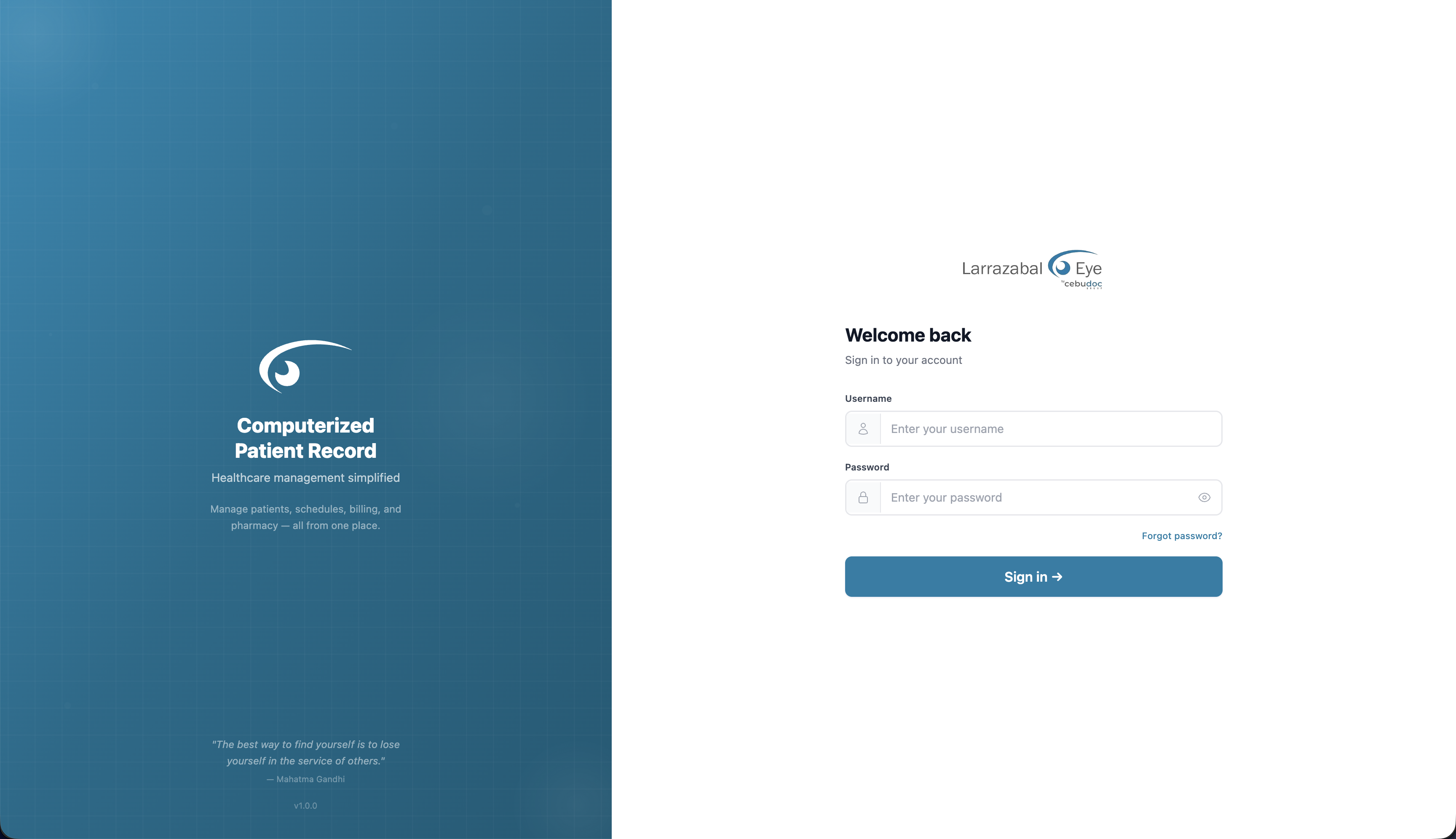
- Open the CPR web address in your browser. The login screen appears with a Welcome back heading.
- Type your username in the first field.
- Type your password. Click the eye icon at the end of the field to show or hide what you typed.
- Click Sign in →.
If your username or password is wrong, a red message appears above the form. Check your entry and try again. If you've forgotten your password, use Forgot password? (below).
After signing in you land on your default landing page — the Dashboard unless you've changed it in Settings.
Resetting your password
If you can't remember your password, click Forgot password? on the login screen. The reset runs in four short steps with a progress bar at the top.
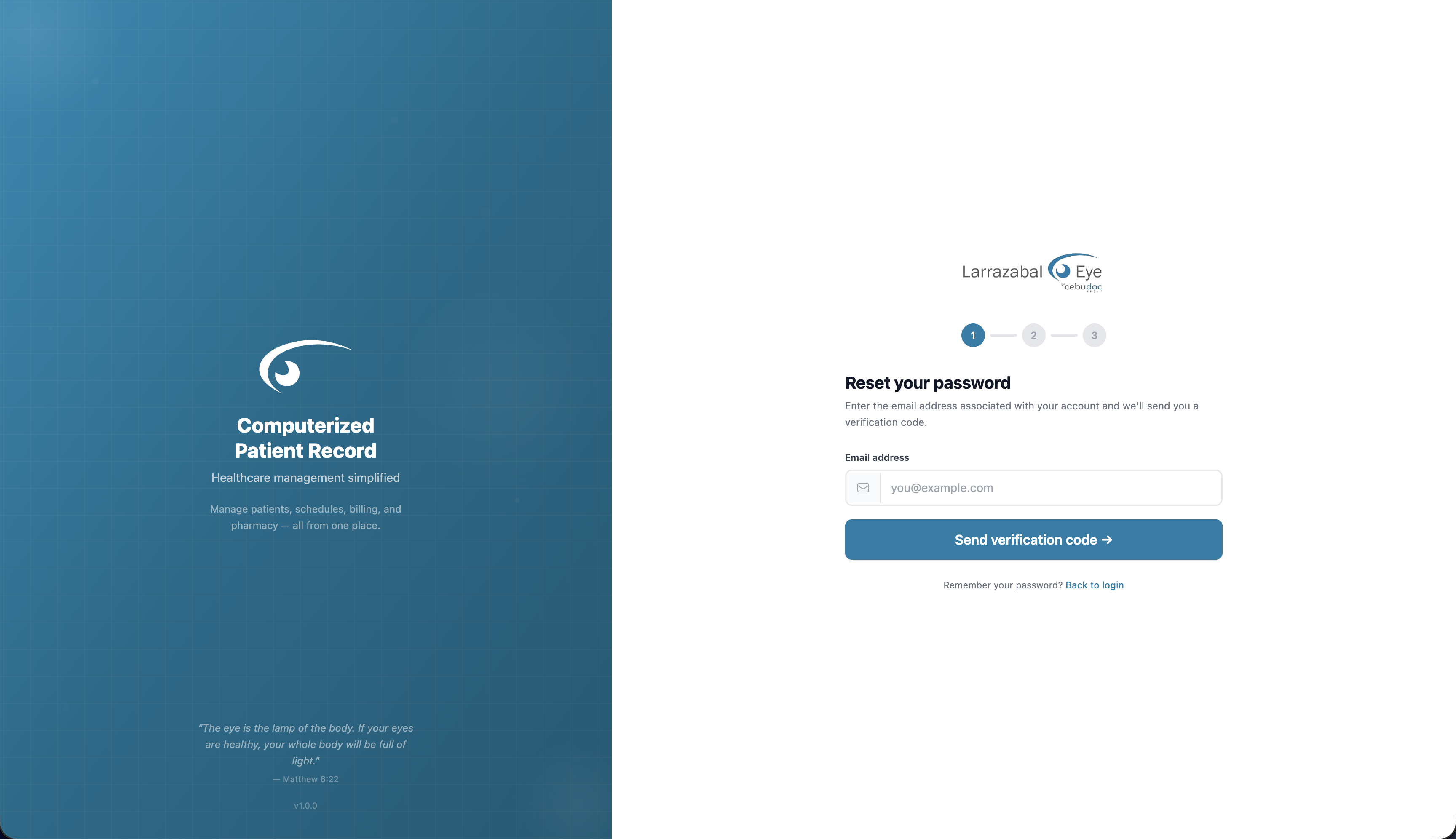
- Enter your email — type the email address on your account and click Send verification code →. A 6‑digit code is emailed to you.
- Check your email — enter the 6‑digit code. It submits automatically once all six digits are filled. Didn't get it? Wait for the Resend code countdown to finish, then click it.
- Create a new password — type a new password (a strength meter shows how strong it is), then type it again to confirm. When the two match you'll see a green check. Click Reset password →.
- Done — you'll see a "Password reset!" confirmation and be sent back to the login screen automatically after a few seconds. You can also click Go to login →.
The screen layout
Once you're in, every page shares the same frame:

Top bar (teal) — on the left, the CPR logo (click it to go to the Dashboard) and, on narrow screens, a menu button. In the middle (on wide screens) are the main section tabs: Dashboard, Patient, Queue, Reservations, Surgery, Pharmacy, Reports, Configuration. You only see the tabs your account is allowed to open. On a phone or small window, tap the menu button to open the same list as a side panel.
Branch selector — near the top right, a button showing your current branch (for example "Cebu Doctors University Hospital"). If your account covers more than one branch, click it and pick another.
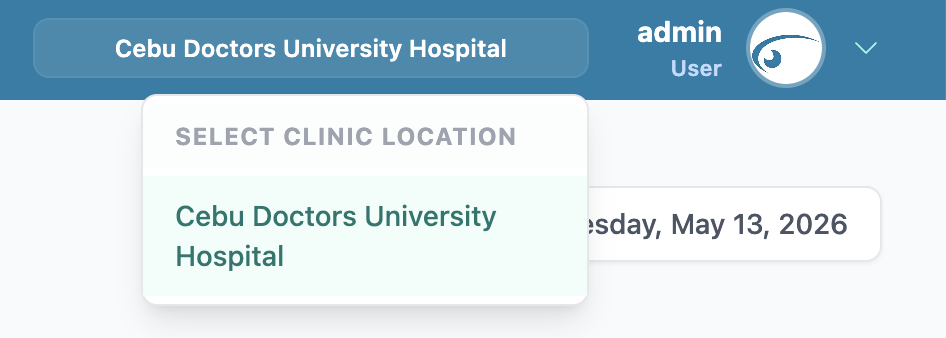 The page reloads its data for the branch you choose. Some screens (like surgery locations) are branch‑specific.
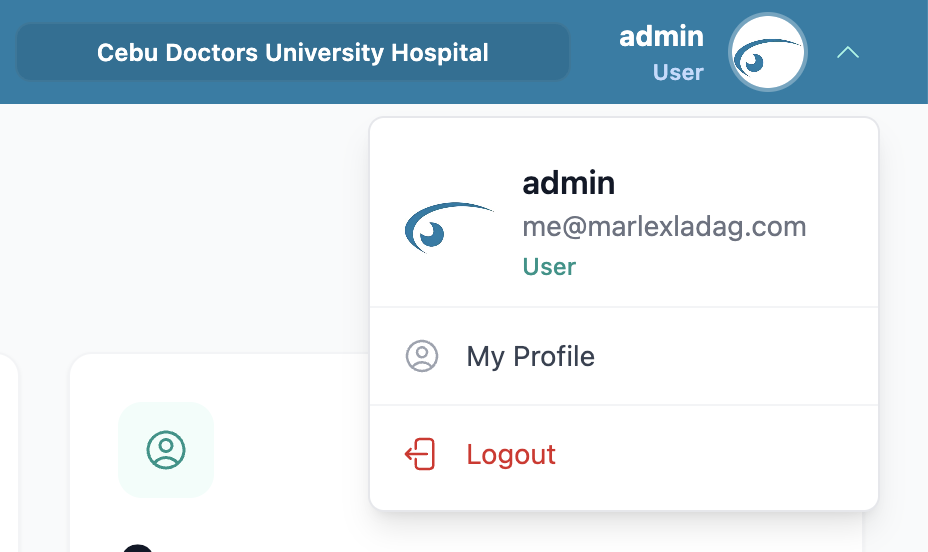
Your account menu — far right, showing your name and role with your photo. Click it for:
- My Profile — edit your details and change your password.
- Logout — sign out and return to the login screen.
The active section tab is highlighted in white. Loading areas show a brief "Loading…" message or skeleton placeholders.
Your profile
Open My Profile from the account menu (top right).
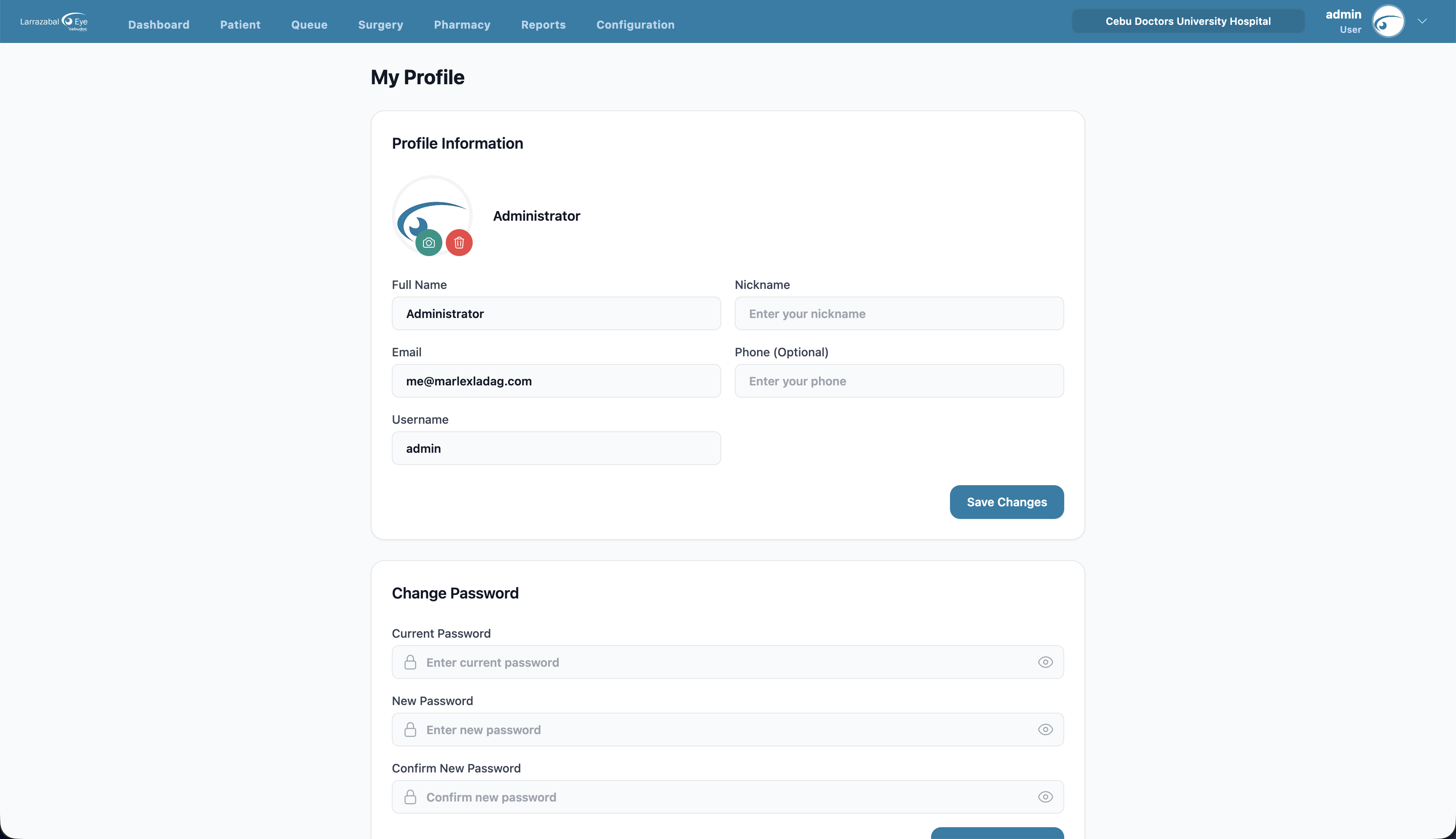
Profile information
- Photo — click the camera button on your photo to upload a new image; click the trash button to remove the current one.
- Edit Full Name, Nickname, Email, and Phone (Optional). Your Username is shown but can't be changed here.
- Click Save Changes. A green "Profile updated successfully" message confirms it.
Change password
In the Change Password card on the same page:
- Enter your Current Password.
- Enter a New Password and then Confirm New Password.
- Click Update Password. The fields clear and a confirmation message appears.
Use the eye icon on any field to show or hide what you typed.
Settings
Open Settings to adjust preferences. It has three sections in a side list:
- Appearance — choose a theme: Light, Dark, or System (follow your computer's setting).
- Security — link to change your password, an option for Two‑Factor Authentication, and a list of Active Sessions where you can Sign out an individual device or Sign out all devices.
- Preferences — set your Default Branch (the branch selected when you log in, or "Use last selected") and your Default Landing Page (Dashboard, Patient, Queue, Reservations, Surgery, or Pharmacy). If your default landing page is one you no longer have access to, the system sends you to the first page you can open.
Logging out
Click your account menu (top right) and choose Logout. To end sessions on other devices, use Sign out all devices in Settings → Security.