
Reservations
The Reservations tab is for booking, rescheduling, and checking in patients who have a future appointment. A reservation holds a patient's slot until they arrive; checking them in creates a queue ticket for the day.
The Reservations page
Open the Reservations tab. The page header reads Reservations · Book and manage upcoming clinic reservations. with a + Book Reservation button at the top right.

Below it, a single toolbar combines three filters:
- Date — defaults to today; pick another day, or clear the date to see all dates.
- Status — Pending (default), Checked-in, Cancelled, or All.
- Search — filter by patient name as you type.
Underneath, the page is split in two: the list of reservations on the left and a details panel on the right. When the list is empty for the current filters it says "No reservations for the selected filters."; when nothing is selected the right side says "Select a reservation to see details."
Each row in the list shows the patient's name, priority badge, the reserved date, status, and channel (Walk-in / Online / Phone). Click a row to open its details on the right.
The details panel
With a reservation selected you'll see:
- Patient name and the reservation # + reserved date.
- Priority badge.
- Status, Channel, Patient ID and, once the patient has been checked in, the Queue Ticket number and the Checked in timestamp. Cancelled reservations show Cancelled instead.
- Notes, if any.
Three actions are at the bottom — they're only available while the reservation is still Pending:
- Check-in — turn the reservation into a queue ticket for today (see below).
- Reschedule — pick a new date and confirm.
- Cancel — confirm in the dialog; the reservation moves to Cancelled status.
Booking a reservation
Click + Book Reservation in the page header. The Book Reservation — Search for a registered patient dialog opens.
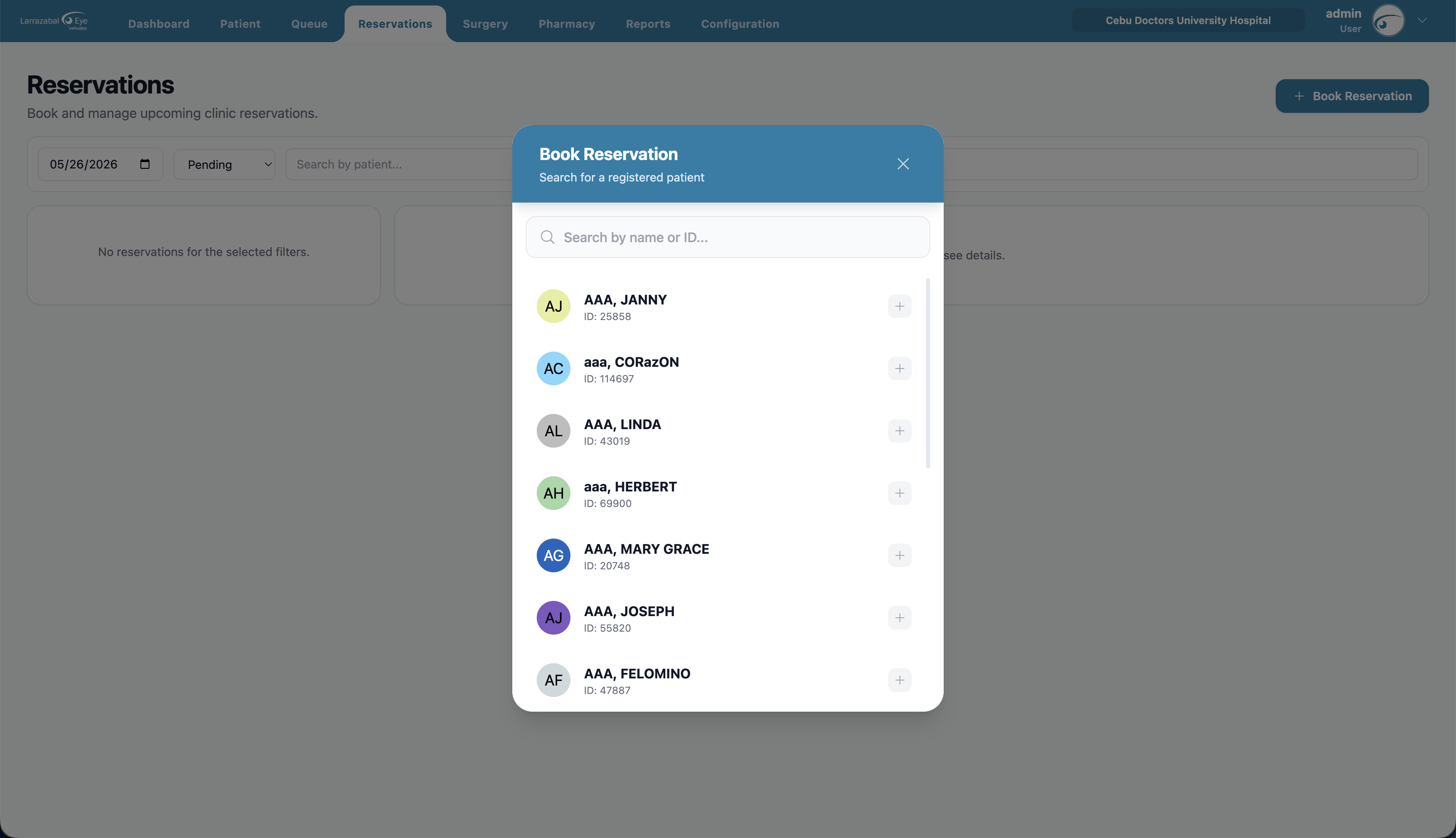
Type a name or ID in the search box; matching patients appear in a list. Click the + icon next to a patient to select them. (Use ‹ Back to Search to pick a different patient afterwards.)
Fill in:
- Reserved Date — date picker.
- Priority — Emergency, PWD, Senior, or Regular.
- Channel — Walk-in, Online, or Phone.
- Notes — optional.
Click Book Reservation. A toast confirms it; the new entry appears in the list.
Checking a patient in
From the details panel, click Check-in. Pick the Service the patient should enter (the priority defaults to whatever was set on the reservation) and confirm. A toast confirms "Patient checked in." and you're taken straight to the Queue page with the new ticket selected.
You can also check in from the queue. On the Queue page, Add Patient to Queue → Reservations tab lists today's pending reservations with a one-click Check-in button per row.
Rescheduling and cancelling
- Reschedule opens a small dialog with the current reserved date. Pick a new date and confirm — a toast confirms the change.
- Cancel asks "Cancel reservation? This will mark the reservation as cancelled." Confirm to proceed.
The buttons on the details panel are gated on permissions: reservations.create (Book), reservations.update (Check-in, Reschedule), and reservations.cancel (Cancel). If a button isn't there, you don't have that permission.