
Dashboard
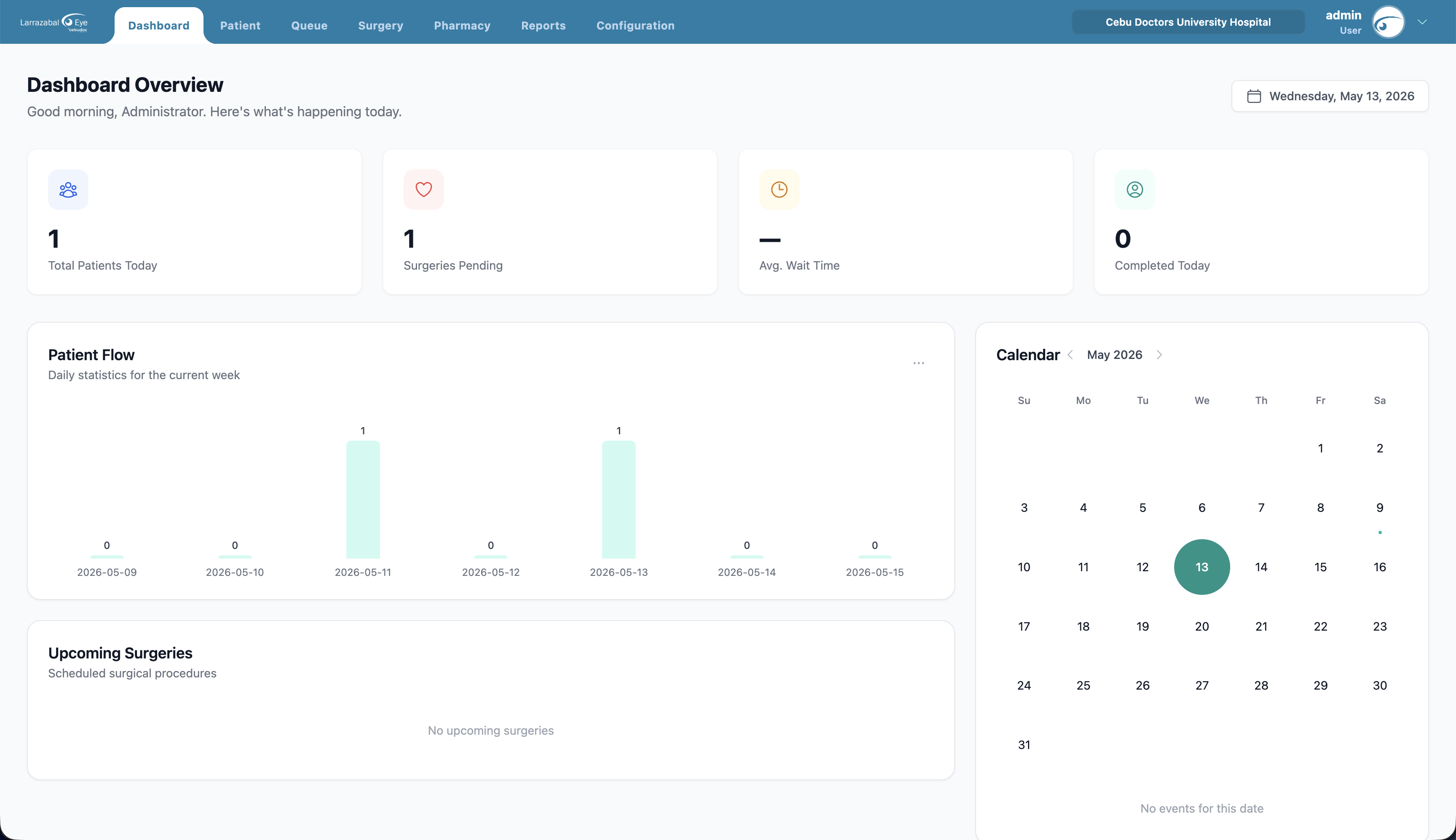
The Dashboard is the home screen. It gives you a quick picture of today's activity. Open it from the Dashboard tab in the top bar (or the CPR logo).
At the top you'll see a greeting with your name and today's date.
Today's numbers
Four cards across the top summarize the day:
| Card | What it shows |
|---|---|
| Total Patients Today | How many patients have been seen or registered today. A small "+N new" badge appears when there are new patients. |
| Surgeries Pending | Surgeries still to be done. A badge shows how many are currently in progress. |
| Avg. Wait Time | The average time patients have waited, in minutes. |
| Completed Today | How many patient visits have finished today. A badge shows no‑shows, if any. |
Patient Flow
A bar chart showing the number of patient visits for each day of the current week (Monday–Sunday). Hover a bar to see its exact count. Use this to spot busy and quiet days.
Upcoming Surgeries
A table of scheduled surgeries with the patient, procedure, surgeon, date and time, eye (right / left / both), and status. Click a row to open the Surgery Details modal — the same one used inside the patient record — showing the full schedule, IOL details, and notes. If there are none, it says "No upcoming surgeries". For full surgery management see Surgery Schedule.
Calendar
A month calendar on the right. Today is highlighted. Days that have events show a small dot. Click any day to see its events listed below the calendar — each event shows its title, time, patient (if any), and a colored dot for its status. Click a surgery event in the list to open the same Surgery Details modal. Use the arrows beside the month name to move between months.
Patient Demographics
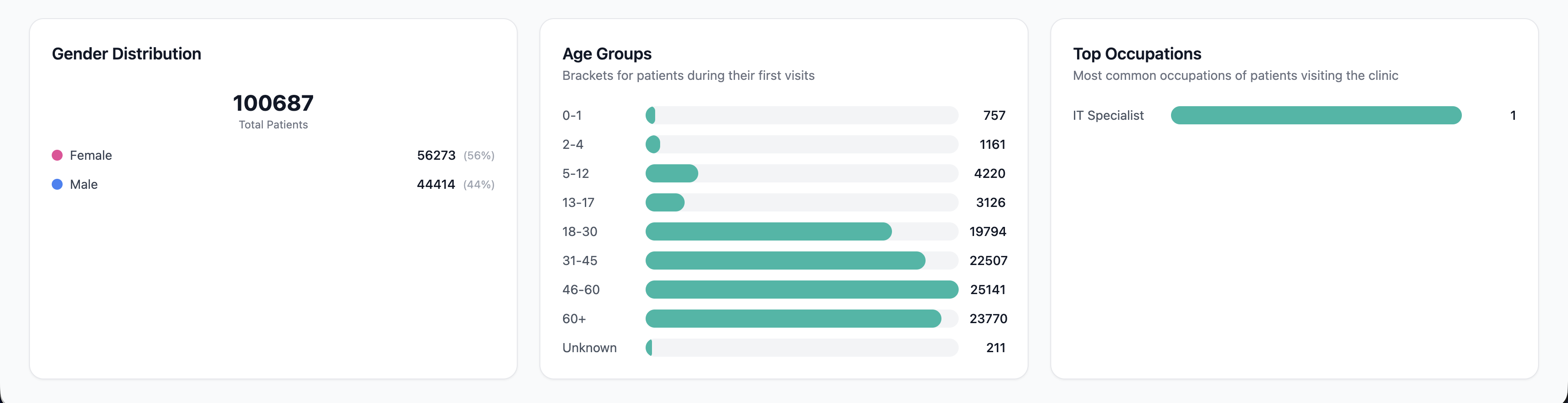
At the bottom, three cards sit side by side:
- Gender Distribution — the total number of patients and a breakdown by gender with counts and percentages.
- Age Groups — patients grouped into age brackets (based on their first visit), shown as bars with counts.
- Top Occupations — the most common patient occupations, shown as bars with counts. If no occupation data is recorded yet, the card says "No occupation data available".
These sections are read‑only — they're for reference, not for entering data.
The Dashboard is gated on
reports-dashboard.access. If your account doesn't have it, you'll be redirected to the first page you do have access to when you sign in.