
How to Map Data
This is a step-by-step walk-through of the Import Data Mappings screen (/admin/legacy-import/mappings). Use it to translate the messy free-text values in the legacy CSV exports into the clean records that CPR uses.
For background on what mappings are and how they fit into the import workflow, see Legacy Import → Data Mappings.
Resolve mappings before you import. Unresolved values either skip the affected rows or import them without the linked record. Fixing a mapping after the fact does not retroactively update already-imported rows — you must re-upload the relevant CSV file for the change to take effect.
Required permission: admin.access.
Getting here
Open Admin → Data Mappings in the sidebar (under the Data Migration group), or navigate directly to /admin/legacy-import/mappings.
The page is organised into a tab bar across the top — one tab per mapping type. Each tab shows two counts: the total mappings discovered so far, and a red unresolved count for entries that still need your attention.
| Tab | What it maps | Type |
|---|---|---|
| Doctors / Surgeons | Legacy doctor names → CPR doctor records | Foreign key |
| Procedures / Surgery Types | Legacy procedure names → CPR procedure records | Foreign key |
| Surgery Locations | Legacy surgery location text → CPR location records | Foreign key |
| Medicines | Legacy medicine names → CPR medicine records | Foreign key |
| Bill Items | Legacy bill item names → CPR bill item records | Foreign key |
| Insurance / Charge To | Legacy insurance/responsible-party names → CPR payer records | Foreign key |
| Nationality | Legacy nationality text → CPR nationality code | Value |
| Occupation | Legacy occupation text → CPR occupation code | Value |
There are two flavours of mapping:
- Foreign key mappings link a legacy text to a real database record. They give you both a Save button (to link an existing record) and a + Add button (to create a new record on the fly).
- Value mappings (Nationality, Occupation) translate a legacy text into a controlled vocabulary value. They show only Save — there is no "+ Add" because the target list is fixed.
The mapping workflow
For any tab, the process is the same three steps: find an unresolved row → pick the match → save.
1. Open a mapping tab
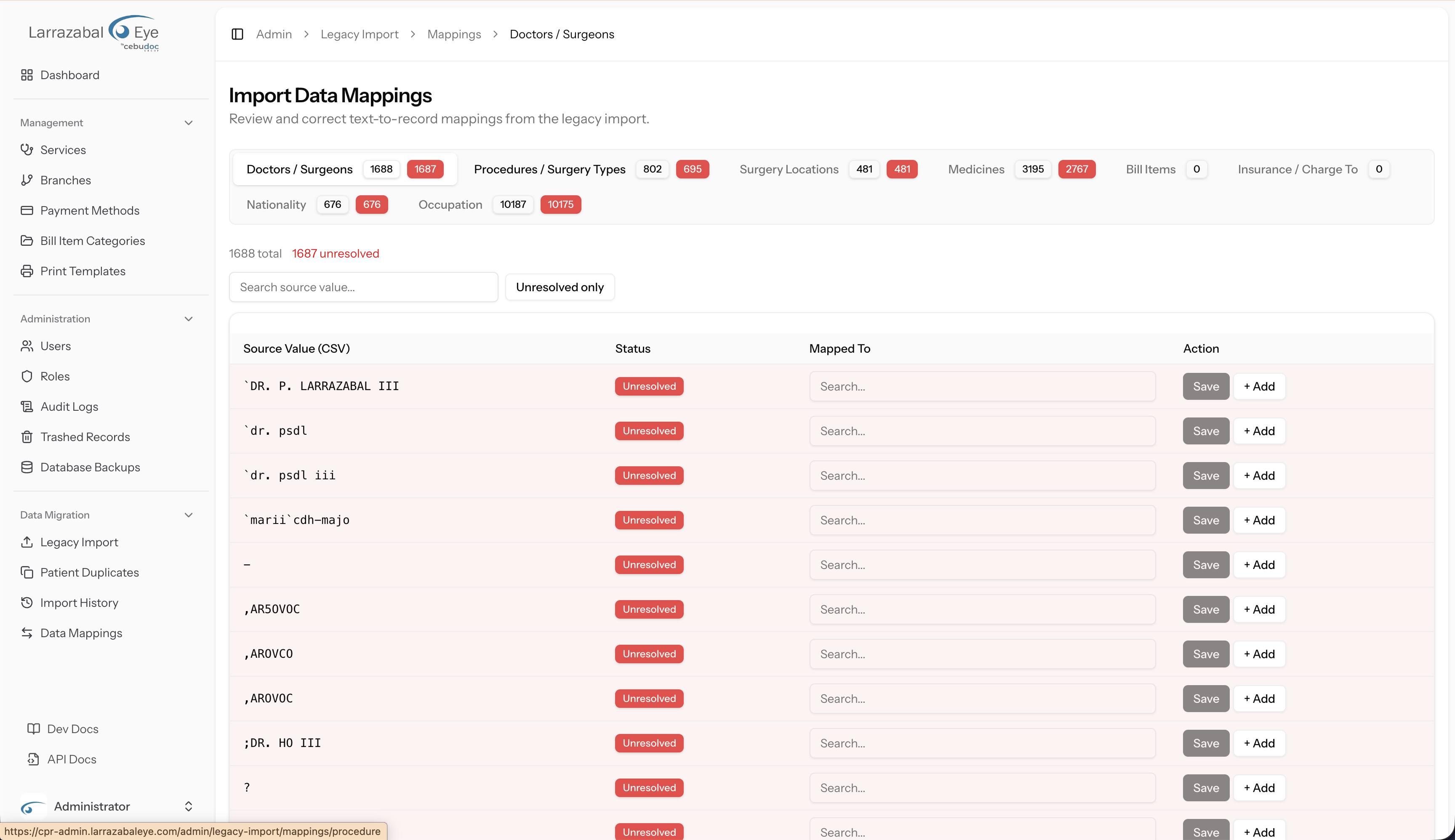
The tab opens to the full list of mappings. Above the table you see the totals (e.g. "1688 total · 1687 unresolved") and two filters:
- Search source value — type to filter rows by the legacy text (the left column).
- Unresolved only — toggle to hide rows that are already matched or auto-created.
Each row shows the Source Value (CSV) in a monospace font (so you can see exactly what was in the legacy file, including odd characters, backticks, and stray punctuation), its Status badge, the Mapped To field, and the Action buttons.
2. Search for the matching CPR record
Click into the Mapped To field on the row you want to fix. A typeahead opens. Start typing — the dropdown narrows to records whose name contains what you typed.

For the row `DR. P. LARRAZABAL III, typing in the field surfaces Potenciano S.D. Larrazabal III, MD as the candidate. Click the candidate to select it.
Tip: the legacy text often contains typos, abbreviations, leading backticks, or alternate spellings. Use just a few distinctive letters from the legacy value rather than the full string — searching for
larrawill surface every Larrazabal doctor in the system.
3. Save the match
After selecting a candidate the field shows the chosen record's name with a Change link, and the Save button becomes active (turns black).

Click Save. The button shows "Saving…" briefly, then the row's status badge flips from Unresolved (red) to Matched (green) and the unresolved counter in the tab badge decreases by one.
If you picked the wrong candidate, click Change to clear the field and search again before saving.
Per-tab notes
The mechanics are identical across tabs, but the candidate lists and edge cases differ. Quick walk-through of each:
Doctors / Surgeons
The largest tab in most clinics. Expect heavy duplication in the legacy file — the same physician appears under many spellings (e.g. `dr. psdl, `dr. psdl iii, `DR. P. LARRAZABAL III). Map them all to the single canonical CPR doctor record.
If a legacy doctor genuinely is not in CPR yet (perhaps a long-departed associate who only appears in old records), use + Add to create a new doctor record from the legacy name. Review the new record in the Doctors catalog afterwards to fill in any missing details.
Procedures / Surgery Types
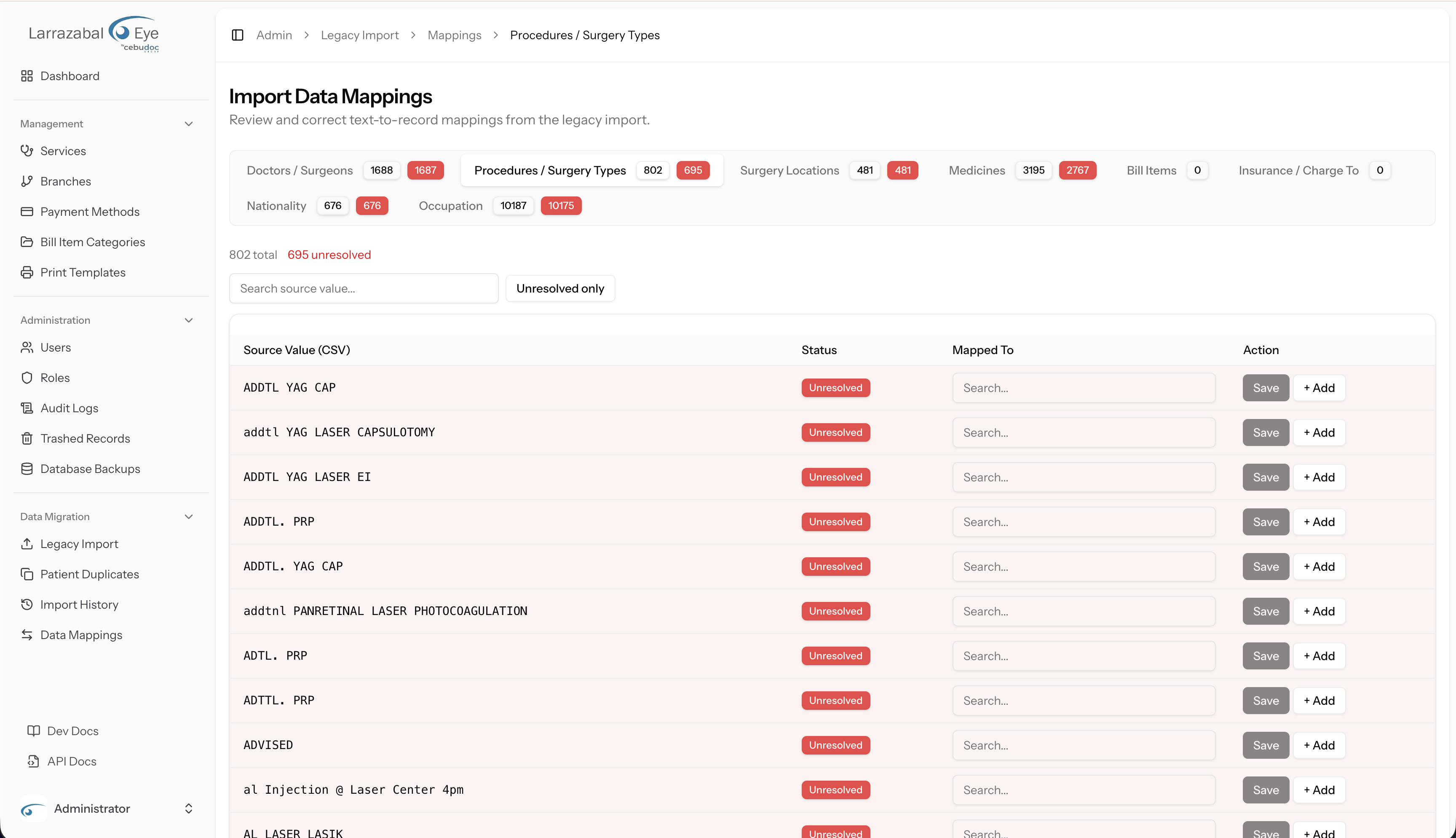
The procedures list has many near-duplicates differing only in punctuation, casing, or trailing notes (ADDTL YAG CAP, addtl YAG LASER CAPSULOTOMY, ADDTL. YAG CAP). Type a few letters of the underlying procedure name:
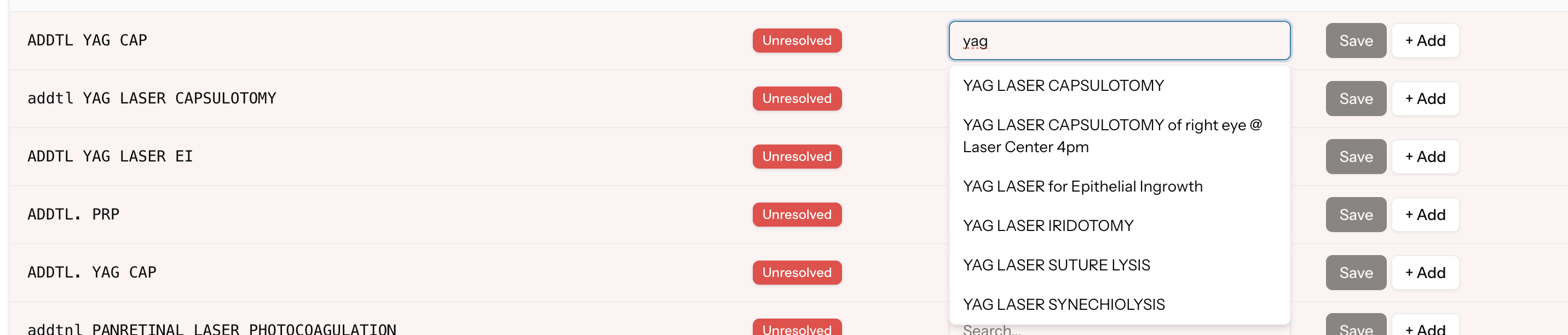
…and pick the canonical CPR procedure (e.g. YAG LASER CAPSULOTOMY) for each variant.

Click Save to commit.
Surgery Locations
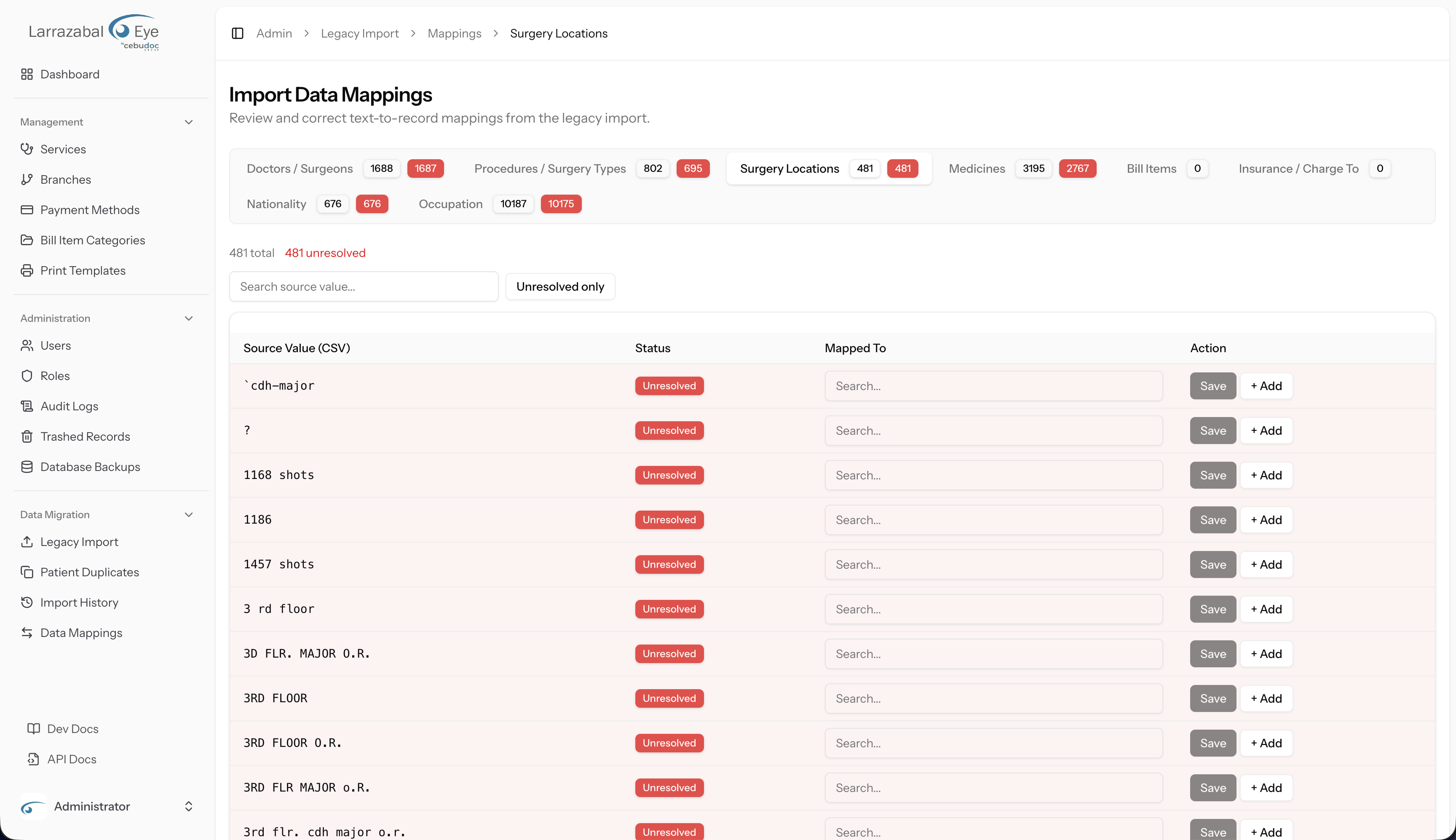
These are the rooms or facilities where surgeries were performed (3RD FLOOR, CDH MAJOR O.R., etc.). The legacy data also contains noise rows such as raw numbers or single punctuation marks — these can usually be ignored (leave them unresolved) unless they correspond to a real location.
Medicines
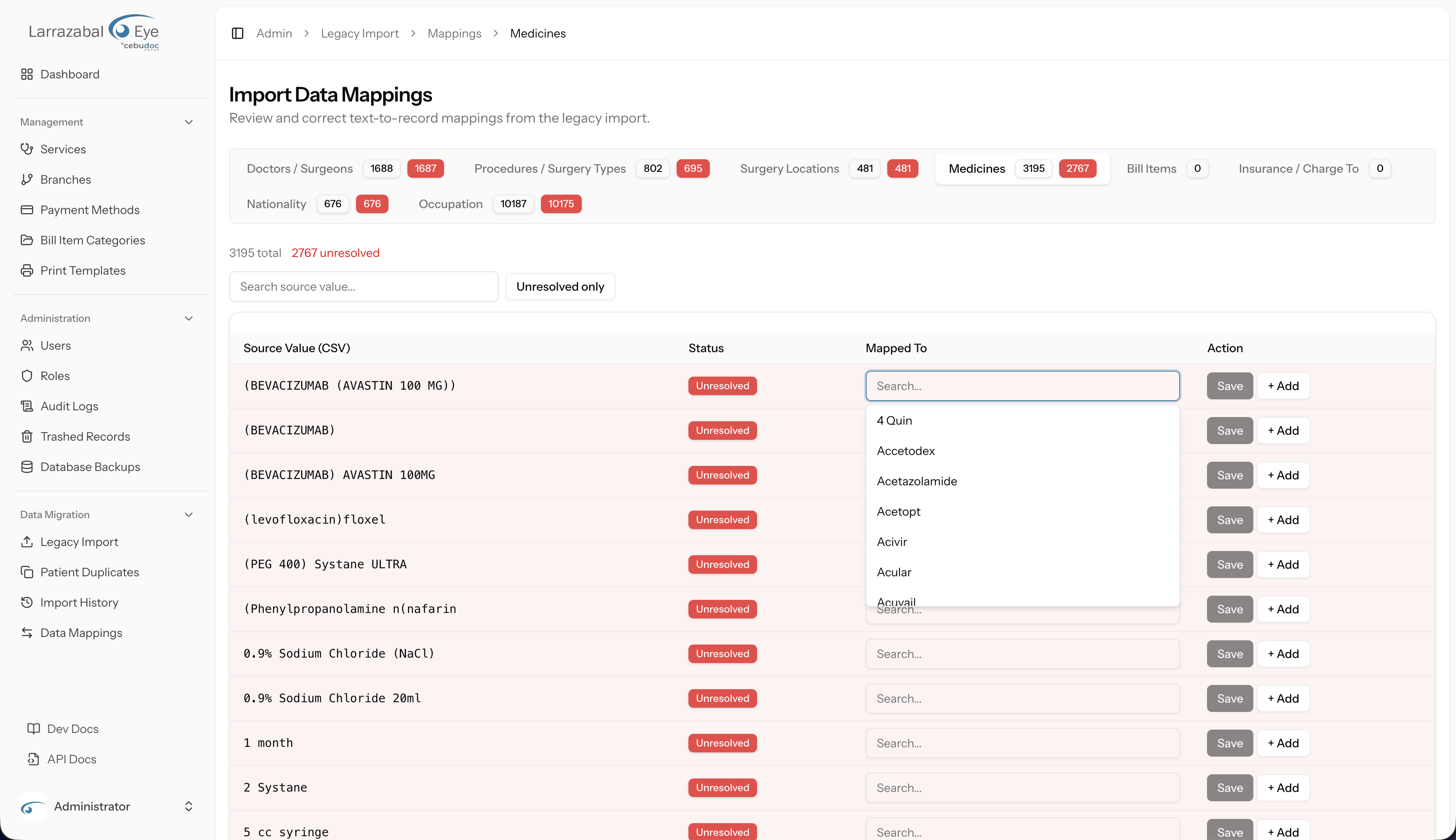
The Medicines tab works the same way. For the entry (BEVACIZUMAB (AVASTIN 100 MG)), type the brand name to find the matching CPR medicine record:

Pick Avastin and Save. Use + Add only when the medicine truly does not exist in the CPR catalogue.
Bill Items
Bill Items behave exactly like Medicines — foreign-key matching with Save and + Add. (No screenshot — the screen layout is identical to the Medicines tab above.)
Insurance / Charge To
Maps payer / responsible-party names from the legacy _Responsible file to CPR payer records. Same workflow as Medicines and Bill Items.
Nationality (value mapping)
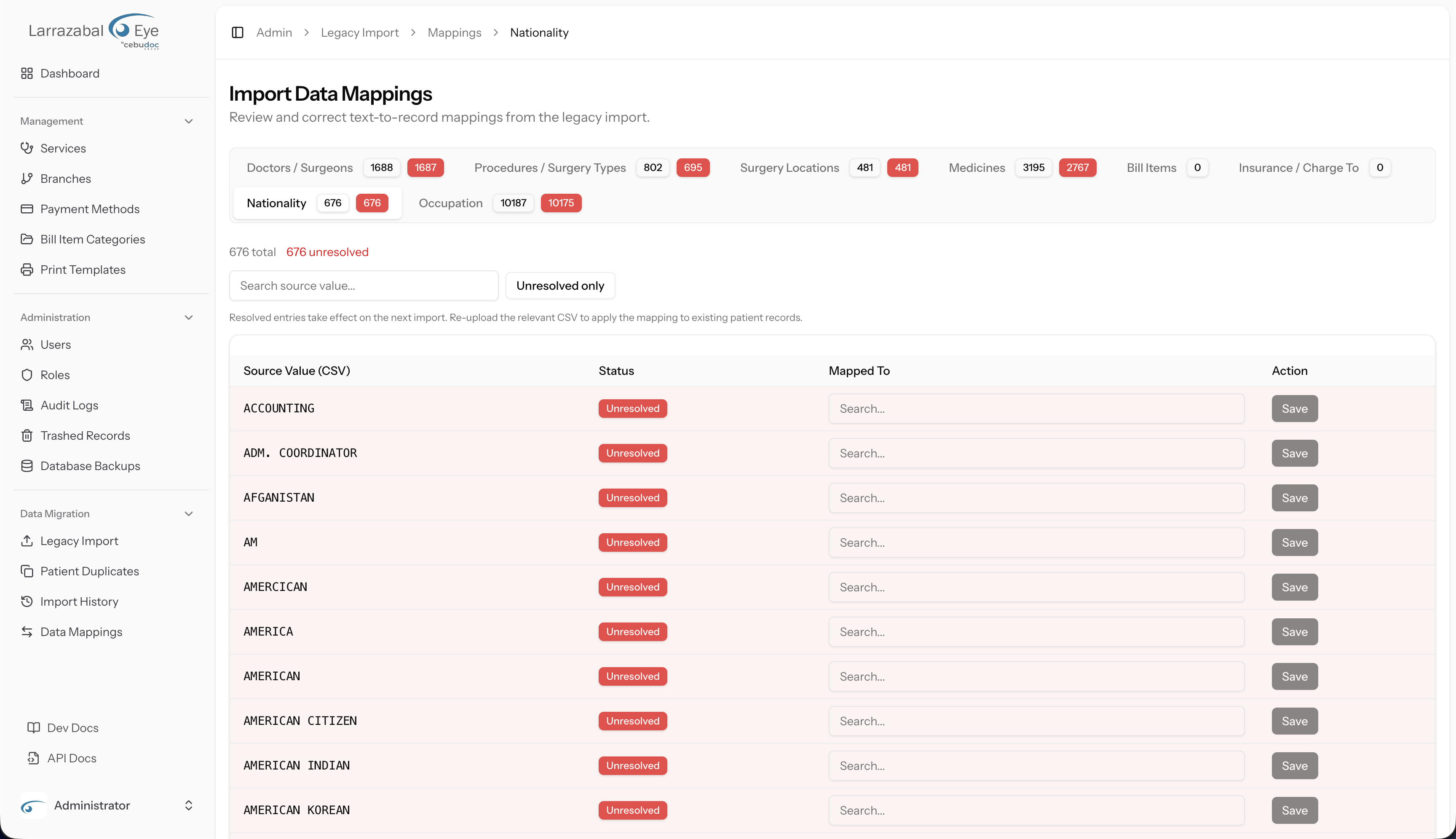
Notice the message above the table:
Resolved entries take effect on the next import. Re-upload the relevant CSV file to apply the mapping to existing patient records.
This is the key behavioural difference for value mappings — saving a mapping here does not update already-imported patients. The mapping only fires during the next CSV ingest. After resolving a batch of nationality mappings, re-upload _perInfo to apply them.
To resolve a row, type the target value:

…and pick the canonical nationality (e.g. American or Filipino-American). The dropdown is a fixed controlled list — there is no + Add button on this tab.
The legacy data is noisy: expect duplicate spellings (AMERICAN, AMERICA, AMERICAN CITIZEN, AMERICAN INDIAN) that all need to be pointed at the same canonical value. Skip entries that are obviously garbage (single dashes, blank rows) — they will simply continue to import as the patient's raw nationality text.
Occupation (value mapping)
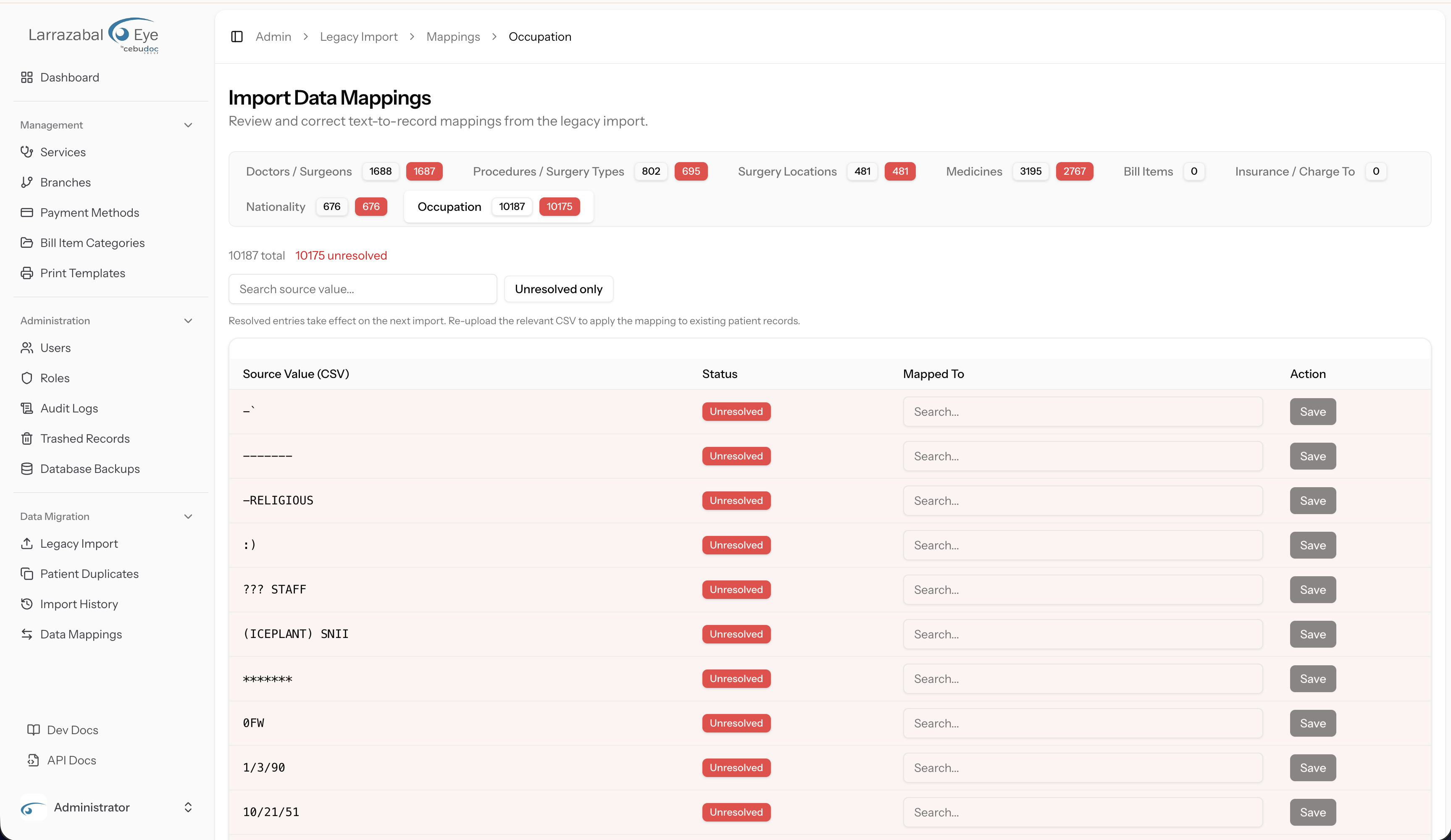
Same behaviour as Nationality — a fixed target list, the "applies on next import" caveat, and a Save-only action column. The Occupation list in the legacy data is by far the noisiest of all tabs (10,000+ entries), containing dates, asterisks, single characters, and other junk alongside real job titles.
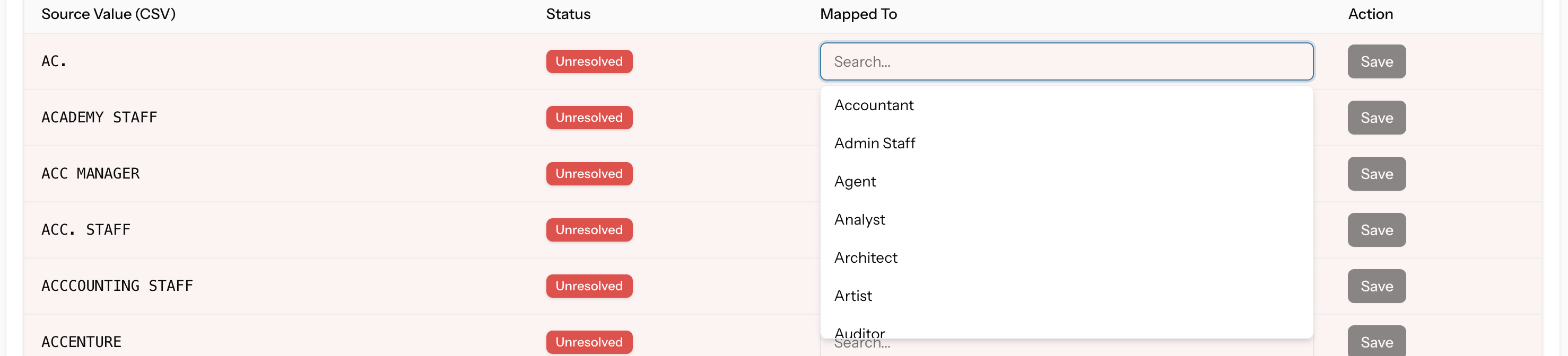
The Mapped To dropdown shows the controlled CPR occupation list (Accountant, Admin Staff, Agent, Analyst, Architect, Artist, Auditor, …). Map legitimate variants (ACC MANAGER, ACC. STAFF, ACCCOUNTING STAFF) to their canonical occupation. Leave obvious junk rows unresolved — those records will continue to carry the raw legacy text.
Practical tips
- Work one tab at a time. Sort by Unresolved only and work top-to-bottom. The list is alphabetical, so similar variants are usually grouped together — you can map a whole cluster of spellings to the same target in quick succession.
- Use search aggressively. Don't scroll thousands of rows. Filter the source-value list to a fragment (
larra,yag,avas) and resolve everything that matches before clearing the filter. - Prefer Save over + Add. Only create a new record when you're certain the legacy value does not correspond to anything already in CPR. Spurious new records pollute the catalogues and require cleanup later.
- Value mappings need a re-import. After resolving Nationality or Occupation rows, re-upload
_perInfofrom the Legacy Import screen to apply the new mappings to the patient records. Without the re-import the resolved mappings only affect future imports. - Junk rows are okay. The legacy data inevitably contains punctuation, dates, and other noise that does not correspond to anything real. Leaving these unresolved is fine — they will not break the import.
- Check the unresolved badge. Aim to drive the red unresolved count on each tab down to zero (or as close as the data allows) before running a full import. See the recommended import order.