
Trashed Records
The Trashed Records screen lists every soft-deleted record across CPR — patients and other data types — that has been removed but not yet permanently destroyed. From here you can restore a record to make it active again, or permanently delete it so it can never be recovered.
Permanent deletion is irreversible. A force-deleted record is gone from the database and cannot be restored. Use this power carefully and only when you are certain the data is no longer needed.
Required permissions:
- Viewing and restoring:
trashed-records.access - Permanently deleting:
trash.access(an additional permission on top oftrashed-records.access)
The Force delete button is only visible if your account holds the trash.access permission. If you do not see it, you can still restore records but cannot permanently remove them.
Getting here
Open Admin → Trashed Records in the sidebar.
The page heading reads "Trashed Records" with the subtitle "Restore or permanently delete soft-deleted records."
The type filter
A filter bar near the top of the page lets you narrow the list by record type. The All option shows deleted records across every registered type, sorted by deletion date with the most recently deleted first. Clicking any other tab — such as Patient — limits the list to that type only.
The available types reflect the model types that CPR tracks for soft-deletion. "All" shows a combined view (up to 50 records per type, sorted by deletion date). When a specific type is selected, the list is fully paginated.
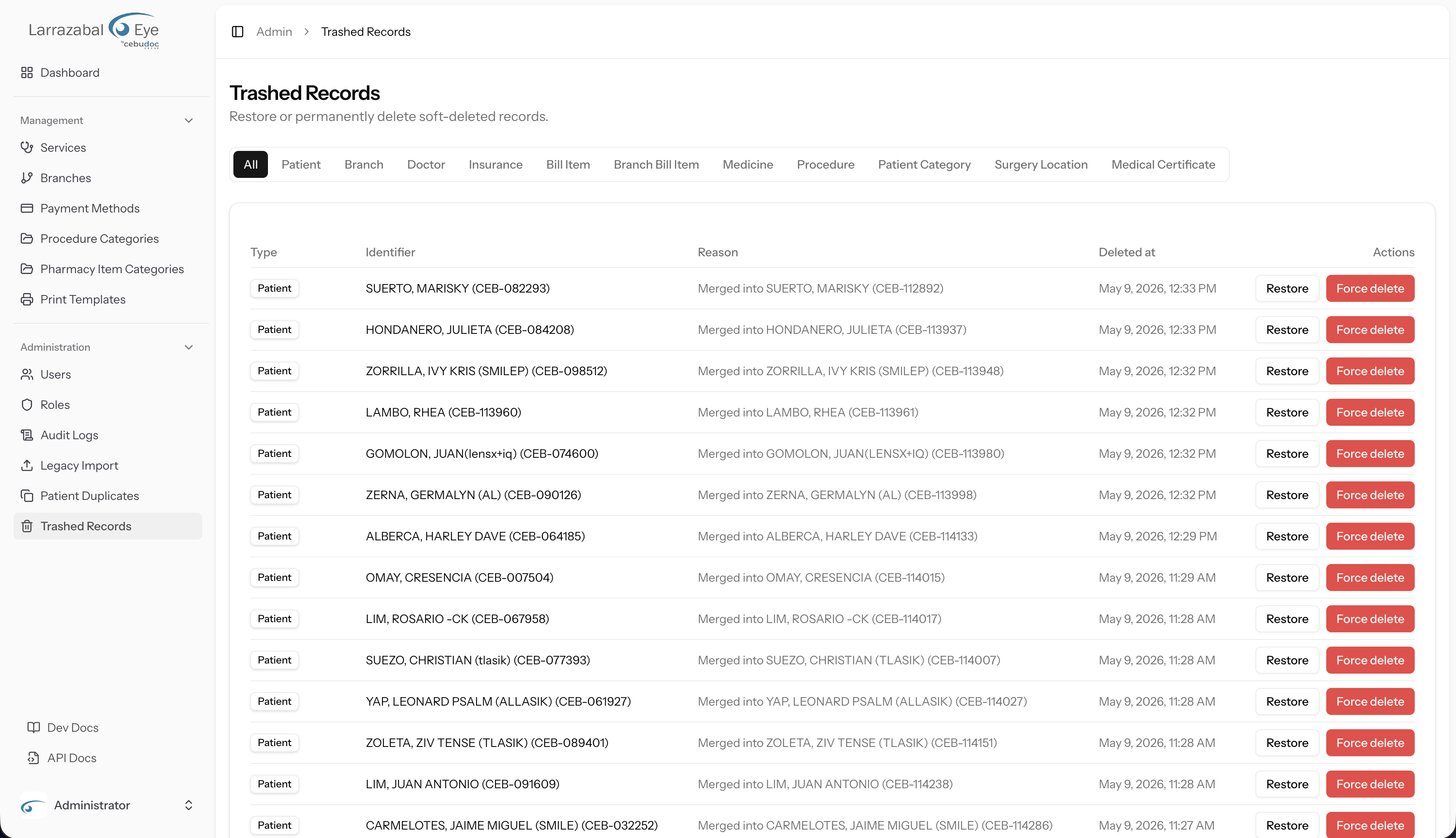
The record table
The table has five columns:
| Column | What it shows |
|---|---|
| Type | A badge showing the record category (for example, "Patient"). |
| Identifier | A human-readable label for the record — for patients this is the name and PIN; for other types it is an appropriate descriptive string. |
| Reason | Why the record was deleted, if a reason was captured. Common reasons include "Merged into [patient name]" (for patients merged via Patient Duplicates). Shows a dash if no reason is recorded. |
| Deleted at | The date and time the record was soft-deleted. |
| Actions | Restore button (visible to all users with trashed-records.access); Force delete button (visible only to users with trash.access). |
When the table is empty for the selected type, the page displays "No trashed records."
Restoring a record
Restoring brings a soft-deleted record back to its active state — it becomes visible again in the staff application and in any admin lists where it belongs.
To restore a record, click the Restore button on its row. A confirmation dialog titled Restore record? opens before the restore is committed. The dialog's body depends on the record type:
Merged patients (Reason = "Merged into [name]"): the body warns: "Restoring this patient brings the record back but will NOT restore visits/transactions that were merged into the kept primary. You will need to relink those manually. Proceed?"
This is an important distinction. When two patients were merged via Patient Duplicates, the surviving patient absorbed the other's data. Restoring the deleted patient brings the record back as an independent patient, but the clinical and billing records that were reassigned during the merge remain with the primary patient — they are not automatically moved back. You will need to manually reassign any data that should belong to the restored patient.
All other record types: the body is simply "Restore [Type]: [Identifier]?"
Click Restore to commit, or Cancel to dismiss. Once the restore is in progress the row's Restore button is disabled.
On success, a green inline banner appears at the top of the page ("X restored.") and the record is removed from the trashed list. The banner auto-dismisses after a few seconds.
Permanently deleting a record (Force delete)
Force deletion removes a record from the database completely. There is no recovery path after this action.
Only use force deletion when you are absolutely certain — for example, to clean up test data, purge truly obsolete records that were soft-deleted in error, or comply with a data-removal request. When in doubt, leave the record trashed.
To permanently delete a record:
Click the Force delete button (red, destructive style) on the row. A confirmation dialog opens.
The dialog reads:
"Permanently delete?" "This will permanently remove [Type]: [Identifier]. This cannot be undone." "Type the identifier exactly to confirm:"
An input field appears with the record's identifier as its placeholder. You must type the identifier exactly — character for character — before the Permanently delete button becomes active.
Click Permanently delete. The button becomes active only when the typed text matches the identifier exactly.
On success, a green inline banner at the top of the page reads "[Type] permanently deleted." and the record is removed from the list.
If you change your mind, click Cancel to close the dialog without taking any action.
The identifier-typing requirement is intentional — it forces you to consciously confirm which specific record you are about to destroy, reducing the risk of accidental permanent deletion.
Pagination
When a specific type is selected in the filter bar and there are more than 20 records, pagination controls appear at the bottom of the page showing the current page, total count, and page navigation buttons.
In "All" mode, up to 50 records per type are shown in a single combined list sorted by deletion date.
Related pages
- Patient Duplicates — merging patients is the most common source of trashed patient records.
- Audit Logs — the audit log records deletion events; use it to find out who deleted a record and when.
- Getting Started — general Admin Panel navigation.