
Patient Duplicates
The Patient Duplicates screen lists pairs of patient records that CPR has detected as potentially the same person. This typically occurs after a Legacy Import, when the import process compares incoming records against existing patients and flags matches. Your job here is to decide, for each flagged pair, whether to merge them into one record or dismiss the flag as a false positive.
This is a high-impact tool. Merging two patients is permanent and cannot be automatically reversed. Take the time to verify each pair carefully before acting.
Required permission: admin.access. No additional permission beyond the base admin access is required.
Getting here
Open Admin → Patient Duplicates in the sidebar.
The page heading reads "Patient Duplicates" with the subtitle "Review and resolve duplicate patient records detected during import."
The three tabs
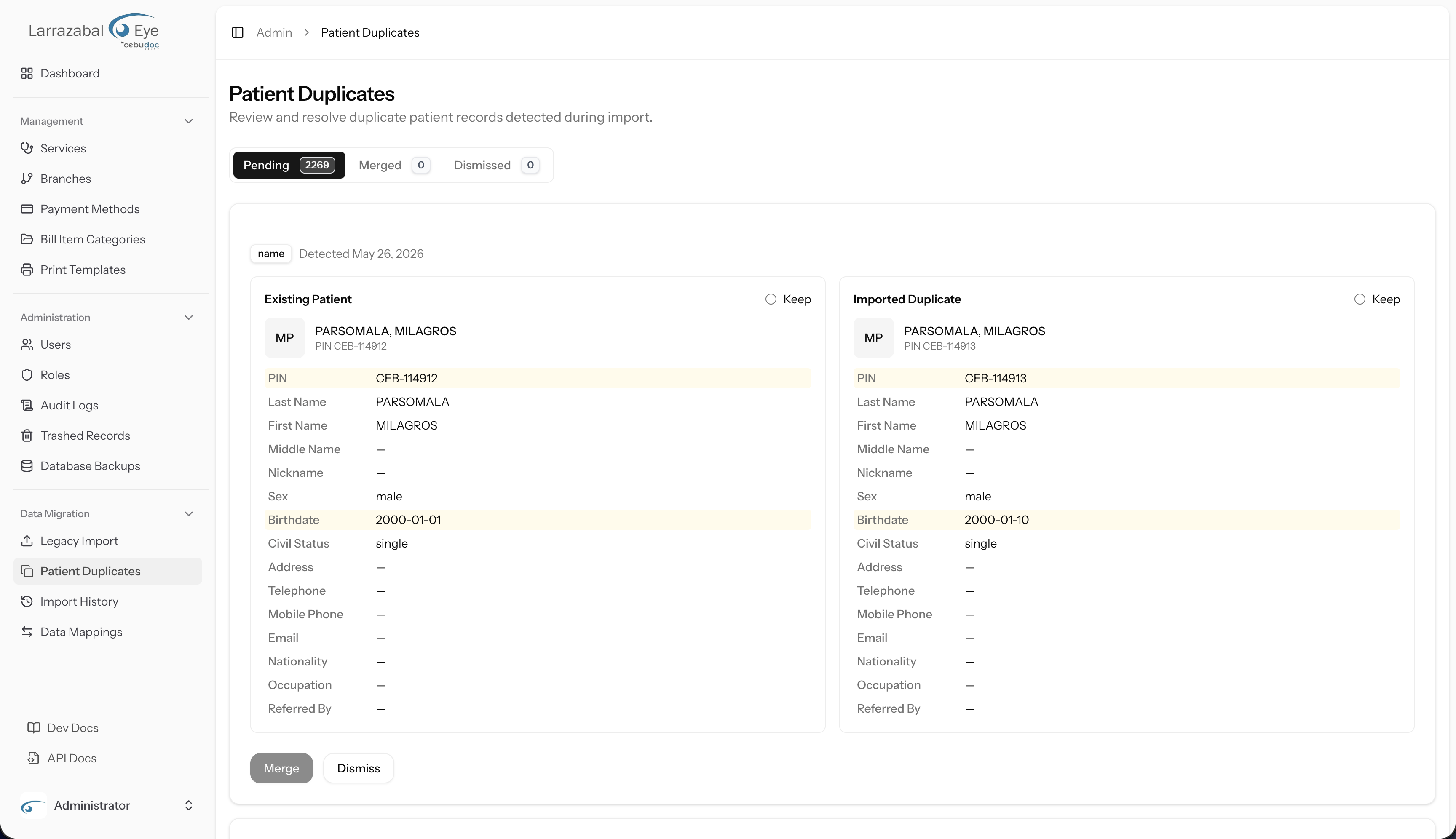
At the top of the screen, a tab bar divides all duplicate candidates into three groups. Each tab shows a count badge:
| Tab | What it shows |
|---|---|
| Pending | Pairs that have not yet been resolved — these require your attention. |
| Merged | Pairs where you (or the system) previously merged the two patients into one. |
| Dismissed | Pairs that were reviewed and marked as not duplicates. |
Click a tab to switch views. The counts update immediately when you merge or dismiss a pair on the Pending tab.
Reading a candidate card
Each duplicate candidate appears as a card. At the top of the card:
- A badge showing the matched on value — the field (or combination of fields) the system used to flag this pair as a potential duplicate (for example, name, birthdate, or a combination).
- A Detected date showing when the flag was created.
The card body shows a side-by-side comparison of the two patients' records:
- The left panel is labelled Existing Patient — the record that was already in CPR before the import.
- The right panel is labelled Imported Duplicate — the record that came in through the import.
Each panel has a header row showing the patient's profile photo (or their initials in a rounded square if no photo is set), the patient's name, and — below the name — the patient's PIN if one is assigned.
Below the header, each panel lists the following fields for the patient:
PIN, Last Name, First Name, Middle Name, Nickname, Sex, Birthdate, Civil Status, Address, Telephone, Mobile Phone, Email, Nationality, Occupation, Referred By.
Fields where the two patients differ are highlighted with an amber background, making it easy to spot discrepancies without reading every line.
Verifying a pair
Before you take any action, compare the two panels carefully:
- Do the names match closely enough to be the same person, or could they be different individuals with similar names?
- Does the birthdate match?
- Do contact details (phone, address) overlap?
- Are the differences minor enough to be data-entry variations from the old system (e.g. a missing middle name, a slightly different spelling), or do they suggest genuinely different people?
If you need to look at the full patient records in the staff application, see /end-user/patients for guidance on finding and reviewing patient details there.
The staff app also performs a duplicate check at the point of registration — if a new patient is being added with a name and birthdate that closely match an existing record, staff are warned before saving. The Patient Duplicates admin screen is the follow-up step for cases that slip through or arise from bulk imports.
Merging a duplicate pair
Merging combines both patient records into one. The record you designate as the primary patient is kept; the other is soft-deleted (moved to Trashed Records with a reason of "Merged into [primary]"). All linked data — visits, transactions, clinical records — that belonged to the non-primary patient is reassigned to the primary.
This cannot be automatically undone. If you later discover a merge was a mistake, you can restore the deleted patient record from Trashed Records, but you will need to manually relink any data that was moved. Treat every merge as permanent.
To merge:
- In each panel, you will see a Keep radio button. Select Keep next to the patient whose record you want to preserve as the primary (i.e. the one that will survive the merge). The selected panel gets a coloured ring around it to confirm your choice.
- Once a primary is selected, the Merge button at the bottom of the card becomes active.
- Click Merge. The button shows "Merging…" while the operation runs.
- On success, a green notification ("Patients merged successfully.") appears at the top of the page, the card is removed from the Pending list, and the Pending count decreases by one while the Merged count increases by one.
If something goes wrong (for example, if the pair has already been resolved by another admin), an error alert appears with the reason.
Dismissing a pair
If you review both records and conclude they are different people — not duplicates — click Dismiss. This marks the pair as dismissed without changing either patient record.
Dismissed pairs move to the Dismissed tab and no longer appear in Pending. You can review dismissed pairs at any time for reference.
The Merged tab
The Merged tab shows a summary view of previously merged pairs. Each card shows two panels:
- Kept (with an Active badge) — the primary patient that was preserved.
- Merged from (with a Deleted badge, text struck through) — the record that was removed.
Each panel shows the patient's profile photo (or initials fallback), name, and birthdate. The card also shows when the merge was resolved and who performed it. If the merge was triggered automatically during a re-import, an Auto-resolved on re-import badge appears.
When the candidate list is long, pagination controls appear at the bottom of the page. The card list refreshes correctly each time you move between pages.
Tips
- Work through Pending from oldest to newest — older flags are more likely to be genuine legacy-data issues.
- When in doubt, dismiss — you can always revisit a dismissed pair, but a merge cannot be easily undone.
- After a large import, check this screen promptly. The import process may create many pending candidates at once.
- Coordinate with other admins — if multiple administrators have access to this screen, avoid working on the same batch of candidates simultaneously. Once a pair is resolved, the card disappears and cannot be acted on twice.