
Payment Methods
The Payment Method Management screen is where you define how patients can settle their bills — cash, credit card, bank transfer, insurance, e-wallet, or any other tender type your clinic accepts. Every payment transaction recorded in the staff app selects from this list.
- Sidebar location: Management > Payment Methods
- Required permission:
payment-methods.access(plus the top-leveladmin.access) - URL:
/admin/payment-methods
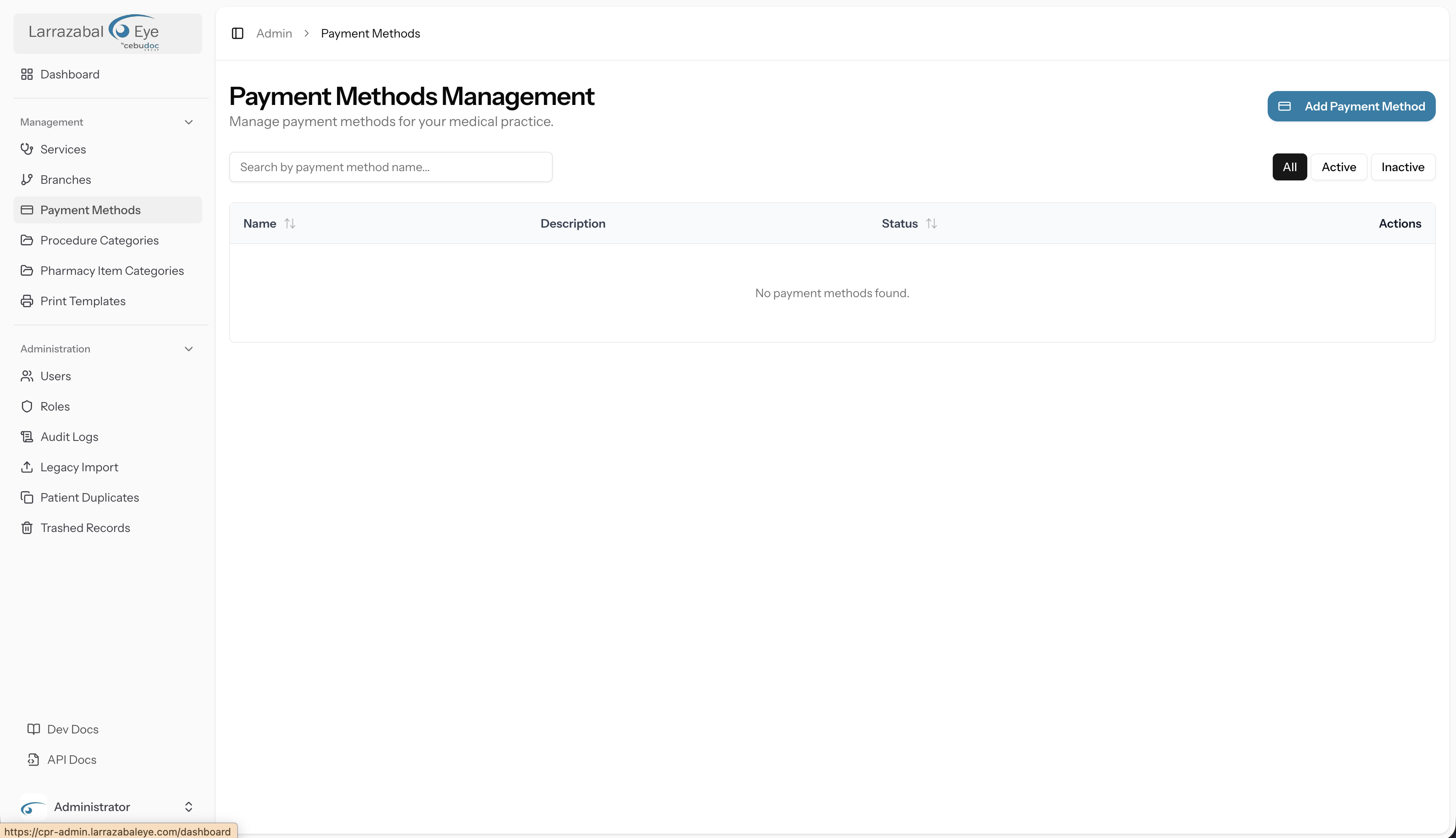
The list
The page heading reads Payment Method Management.
The Add Payment Method button sits at the top right.
Filtering and searching
Two controls appear above the table:
| Control | What it does |
|---|---|
| Search box | Live search (300 ms debounce) across the payment method name |
| Status toggle buttons | All, Active, Inactive — narrows the list to methods with that status |
Table columns
| Column | Notes |
|---|---|
| Name | The payment method's display name; sortable. Rendered as a link — click it to open the Edit dialog. |
| Description | Optional free-text description; shows — when blank |
| Status | Active badge (filled) or Inactive badge (muted); sortable |
| Actions | Three-dot overflow menu — see below |
The default sort is by creation date descending, so the most recently added method appears at the top. The list is paginated at 15 rows per page.
When no records match, the table shows: No payment methods found. Try a different search.
Row action menu
Each row has a three-dot (⋯) menu with two options:
- Edit — opens the Edit dialog in-place
- Delete (red text) — opens the confirmation dialog
Adding a payment method
Click Add Payment Method to open the Add Payment Method dialog. The description reads: Create a new payment method for your medical practice.
| Field | Required | Constraints |
|---|---|---|
| Payment Method Name | Yes | Max 255 characters; must be unique across all payment methods |
| Description | No | Multi-line text area; max 1,024 characters |
| Active toggle | — | On by default; slide left to create the method as inactive |
Click Create Payment Method to save, or Cancel to dismiss.
If you enter a name that already exists you will see a validation error beneath the Payment Method Name field.
Editing a payment method
Click the method name in the table, or Edit from the row action menu. The dialog title shows Edit [method name]. All the same fields are available. Click Update Payment Method to save. A confirmation dialog ("Save changes? — Apply your changes to this payment method?") opens before the save is committed; click Save changes to confirm. On success a "Payment method updated" toast appears.
The name uniqueness check on edit ignores the method's own current name, so you can save without altering it.
Deleting a payment method
Click Delete from the row action menu.
A dialog opens with the title Delete Payment Method and the message: Are you sure you want to delete [name]? This action cannot be undone. Click Delete Payment Method (red button) to confirm, or Cancel to go back. On success a "Payment method deleted" toast appears.
Guard: If the payment method has already been used in one or more billing transactions, the deletion will be blocked and an error banner will appear reading: Cannot delete this payment method as it is being used by transactions. Set the method to Inactive instead so it no longer appears as an option for new payments while historical records remain intact.
How payment methods show up in billing
When a staff member posts a payment against a patient's bill in the billing section of the staff app, they choose a payment method from a dropdown list. Only Active payment methods appear in that list. The selected method is recorded against the transaction and appears on printed receipts and in financial reports.
If a payment method you need is missing from the billing screen, come here and add or reactivate it.
Tips
- Keep names short and unambiguous — staff see these in a dropdown while a patient is waiting.
- Use the Description field to note any acceptance conditions, e.g. Credit card — minimum ₱500 or Insurance — attach PhilHealth form.
- Do not delete a payment method that has transaction history. Mark it Inactive instead; it will disappear from new billing screens but all past records will remain accurate.
- If you accept multiple e-wallets (GCash, Maya, etc.) create a separate entry for each so reports can break down payments by tender type.